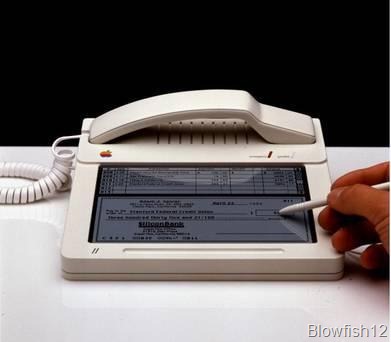
Think you know your Apple tablet inside and out?
Oh, sure, you're well aware of double-tapping the Home screen to see all open apps, enabling iCloud to wirelessly sync content between devices and how to group apps into folders -- but there is a lot more to your beloved 9.7-inch iPad (from $499).
And so the following is a handful of lesser-known tips and tricks to getting the most out of your iPad.
If you have a few suggestions to share of your own, be sure to submit them in the Comments section below — so you get the credit for them.
Split keyboard
If you like to type while holding the iPad, simply press on the virtual keyboard with both thumbs and drag to each side of the tablet. You'll then see the keyboard split into two, grouping the left and right portions of the keyboard together near the corner of the screen. Now, whether you hold the iPad vertically or horizontally, this makes it easier to type using your thumbs while holding the tablet at the same time — instead of trying to stretch your thumbs to reach letters in the middle, like G and H.
Speak to me
The new iPad doesn't have Siri — the powerful voice-activated "personal assistant" feature built into the iPhone 4S — but it does offer built-in voice dictation. Once you enable it in the Settings menu, you'll see a small microphone icon on the lower left of your keyboard (to the left of the spacebar). Tap it when typing an email, iMessage, note or searching the web and start talking. You'll find it's surprisingly accurate — even in somewhat noisy environments — and even works in third-party apps like Facebook or Twitter. But be aware you need an Internet connection (cellular or Wi-Fi) for this feature to work. iPad 1 and 2 users should download the free Dragon Dictation app from Nuance.
Snap that screen
If you see something you like on your iPad screen — a high-score in a video game, funny emoticon during a chat session or cool website — simply press and hold the Home button and quickly tap the Power button on top of the iPad. This will take a screen grab of whatever you're looking at on the iPad; you'll see a brief white flash and hear a camera click noise to confirm the shot has been taken and will be saved to your Camera Roll. Alternatively, if there's an image you like while browsing the web, press and hold on the image and choose "Save."

Roam if you want to
If you're using a 3G or 4G/LTE iPad, you can turn data roaming on in the Settings menu, allowing you to access the Internet in another country. But be aware fees will apply, and they can be pretty hefty, so be sure to check with your provider (e.g. AT&T) about roaming costs per megabyte. You can check your data usage by going to Settings>General>Usage. Also, keep in mind, you can swap out your local SIM card with one from a carrier in the country you're going to, in order to avoid roaming fees — or disable cellular connectivity at all and only use free Wi-Fi, if cash is tight.
Copy en masse
Saying you're writing a lengthy email, note or something in a word processor and you need to select a lot of text. You probably tap on the words in question, line up those blue pushpin thingies and stretch to cover all the text you need to highlight. There is an easier way to highlight an entire paragraph, in fact. Simply quickly tap four times on the text in question and you'll see the entire text will be blue, so you can copy or cut and paste it elsewhere, or delete it. Remember, this only works on editable text and not websites or ebooks, and such. Cool, huh?
You can touch this
Just like Macs, you can use multi-fingered gestures to perform tasks quickly on the iPad. For example, close any open app by simply placing your outstretched fingers and thumb on the screen and pinching inwards. Or scroll between all open apps by dragging four fingers left or right on the screen. Or did you know you could create your own gestures? First, go to Settings>General>Accessibility, and then enable Assistive Touch to record a gesture and the action it should perform. Sweet!
Those dang kids
Are your kids buying all kinds of in-game goodies, like Smurfberries and virtual coins, without your consent? You can, in fact, turn off in-app purchases on your iPad. Simply go to Settings>General>Restrictions and tap Enable Restrictions at the top of the screen. Now you can select what restrictions you want to impose for apps, music, movies, TV shows, web browsing, location-based services, video calling, and more. If all you're only concerned with is in-app purchases, you can restrict this, by sliding over the words "In-App Purchases."
Battery bust
Those who've upgraded their iPad to the third-generation model know it can take a lot longer to charge up the new iPad — due to the much larger battery used to compensate for the power-sucking features like the Retina display, 1080p camera and 4G/LTE connectivity. So here are a few tips to saving battery life so you don't have to keep it plugged into the wall all day: reduce the brightness of your screen, turn off wireless radios you don't use (such as GPS or Bluetooth), limit the number of push-based notifications and ensure apps aren't running in the background (double-tap the Home button and manually close minimized apps).
Switch it up
Ever since iOS 4.3, you've been able to customize what the little switch does on the right side of the iPad. By default, it turns audio on and off. But you can also program that switch to lock your screen orientation so it won't switch between portrait and landscape view whenever you handle the tablet. To do this, go to Settings>General, look for where it says "Use Side Switch to:" and then change it from Mute to Lock Orientation. That's it! Tap your iPad's home button to exit it out of Settings and enter your desktop (Home Screen).

Get back
Ever delete an app on your iPad and want it back — especially if you paid for it? There are three ways to do it. If you don't have your PC or Mac handy, open the App Store and go to download it again. Where the price is listed, it should say "Install" instead of "Free" or "$4.99" or whatever. Or, in the App Store app, tap on the Purchased icon at the bottom (between Categories and Updates) and at the top you can select "Not On This iPad" and you'll see a list of all apps associated with your iTunes account that aren't installed on the iPad. The third way is connecting the iPad to your computer and synchronizing it again with the desired app selected in iTunes.
I've been framed
This is an oldie but a goodie. Well, if you consider something that worked as far back as 2010 as "old." And it's surprising how many people don't know about this one. You can turn your tablet into a digital photo frame. Press the Home button to wake up your iPad (where is says "Slide to Unlock") and tap the small icon with the flower on it. Doing this launches a photo slideshow built into the iPad. To tweak settings, go to Settings>Photos, and under Slideshow you can select during for each photo, and adjust repeat and shuffle options. To change the style of slideshow, go to the Photos app on your iPad and under Photos, tap the Slideshow tab to choose transition type and what song to play (if any).
Let's connect
Apple's $29 Camera Connection Kit lets you import photos or videos onto the iPad without requiring a computer. It consists of a USB port to connect your camera via USB cable and a SD card slot to insert the memory card; both attachments snap into the 30-pin connector at the bottom of the iPad. But did you know you could also attach a desktop keyboard, microphone or MIDI instruments, such as a keyboard, to the USB port? In fact, you can connect one of those inexpensive USB hubs to attach multiple devices to the iPad at the same time.
Read between the lines
Still hungry for more iPad tips and tricks? You can download a free 145-page ebook from Apple, entitled iPad User Guide for OS 5.1 — it's actually the no. 1 free download at the iBookstore (be sure to download the free iBooks app first). Alternatively, you can download the free PDF version of the iPad User's Guide (OS 4.3) from Apple's website. This ebook contains basic information on how to use the tablet rather than little-known tips and tricks, but should still teach you a few things you weren't aware of.
Blowfish12@2012 blowfish12.tk Author: Sudhaarsun. P. R.